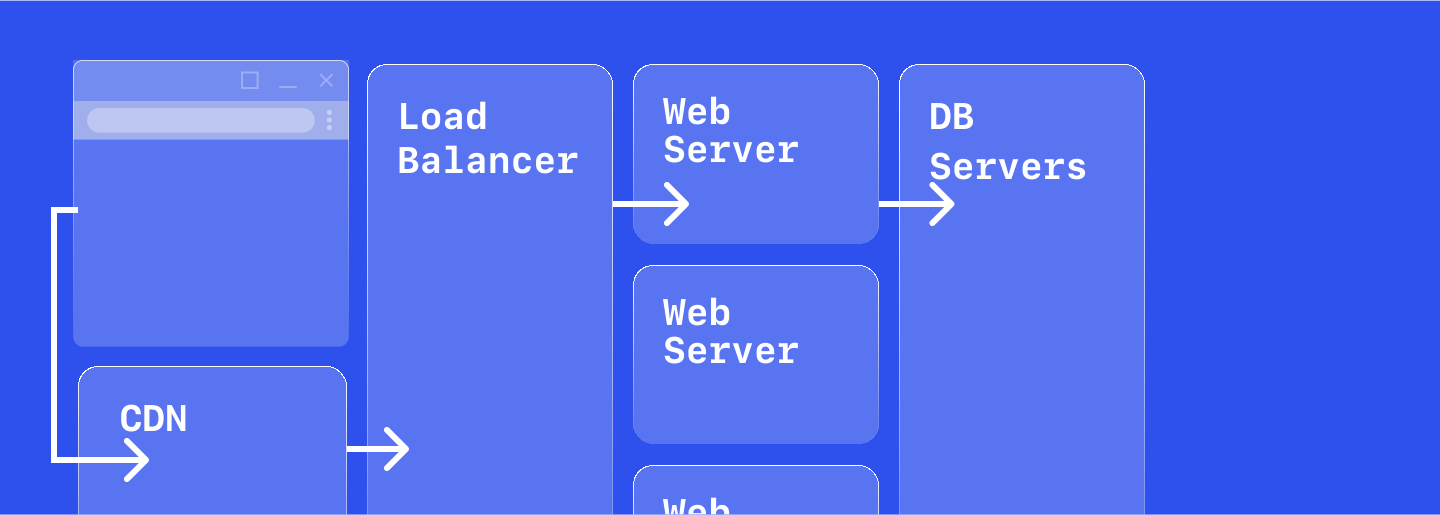
When more than one person starts contributing to your project, your workflow changes. You need a process that lets everyone – developers, designers, and marketers – ship together without slowing each other down.
A good pipeline gets out of your way, especially when multiple people are building together. It’s what lets your team ship faster, review work in context, and trust that each deploy will behave exactly as expected. You push code, new builds run automatically, and deployment happens behind the scenes – without worrying about dependencies, infrastructure, or operations.
A modern, continous deployment pipeline makes that possible. On Netlify, your Git branches become live environments where teammates can review, test, and iterate safely. Every pull request gets a deploy preview; every branch can serve as a dedicated staging space. And with support for AI tools even your AI agents can participate responsibly in your workflow.
This guide covers the foundations of collaborative development on Netlify:
- How to connect your repository and automate builds
- How deploy previews and branch deploys improve feedback loops
- How to manage environment variables across staging and production
- How AI-assisted tools can interact with your pipeline through Netlify MCP
By the end, you’ll have a reliable, team-friendly pipeline that keeps code, content, and collaboration in sync and your team’s sanity intact.
Collaborative workflow
Fit your team's workflow
At the heart of Netlify is a build-and-deploy model that connects directly to your Git workflow and branching strategy. Every branch in your repository can map to a live environment, keeping staging, QA, and production perfectly in sync.
Most teams follow a branching structure like this:
main→ production releasesdevelop→ shared staging or integration testingfeature/*→ individual features, experiments, or fixes
Each branch acts as a logical separation of work, so your team can iterate freely on upcoming features without affecting what’s live in production.
In practice, this means:
- The
mainbranch maps directly to your production environment. - The
developbranch represents a shared staging site that updates automatically as new changes are merged from feature branches.
When you’re ready to release, merging develop to main promotes your latest build to production. From there, the rest of your pipeline — previews, automation, and rollbacks — ensures the transition is smooth, safe, and fast.
Builds and deployments
Connect your Git repository
The first thing you’ll want to do is connect your Netlify site to your Git provider. This ensures that whenever new code is pushed, Netlify detects the updates and immediately starts a new dedicated build process behind the scenes.
The process for linking a project to a repository is simple, whether your team uses GitHub, GitLab, Bitbucket or Azure DevOps.
-
Select your Git provider.
-
Select your code repository (NOTE: private organization-owned repos require a paid plan).
Netlify will automatically figure out the proper commands for the most common frameworks but you have complete control over the pipeline’s build settings.
You can adjust the build command, define environment variables and even adjust the build image to suit your project requirements.
Review work with Deploy Previews
When a build completes, Netlify automatically generates a Deploy Preview. A live, shareable URL and ephemeral enviornment that reflects the exact state of your branch or pull request. Each preview is a full copy of your project, isolated from production, and includes only the changes introduced by the latest commits.
Teams use Deploy Previews to review features, validate fixes, and share progress with stakeholders before anything goes live. As new commits are pushed to the same branch, the preview URL updates automatically so feedback always stays in sync with the latest changes.
Deploy Previews are enabled by default when you connect your repository, so your team can start collaborating immediately. For advanced control, you can adjust preview behavior in your site settings or track configuration in version control using netlify.toml.
You can also connect automated testing or QA tools – such as Cypress, Playwright, or Selenium – to run against each preview for end-to-end validation. And for manual reviews and feedback, the built-in Netlify Drawer makes it easy to leave comments or report issues directly from the preview itself.
Stage & ship to production
Every branch in your repository can have its own live environment on Netlify. By default, the main branch maps to production, but you can enable branch deploys to keep other branches, like staging, running continuously at dedicated URLs.
Branch deploys are perfect for persistent staging sites, client demos, or shared QA environments that need to stay online as the codebase evolves. Unlike Deploy Previews, which represent a single pull request, branch deploys update automatically whenever new commits land.
Netlify generates unique subdomains for each environment (for example, staging.example.netlify.app), and you can configure custom domains or subdomains for a branded experience. This is especially useful for integrations that depend on fixed hostnames, such as auth, webhooks, or callbacks.
When you’re ready to release, merging to your main branch triggers an automatic build and production deploy with zero downtime.
Need to coordinate a timed launch or database migration? You can temporarily lock the project and stop auto-publishing directly from the Dashboard. Then resume when you’re ready.
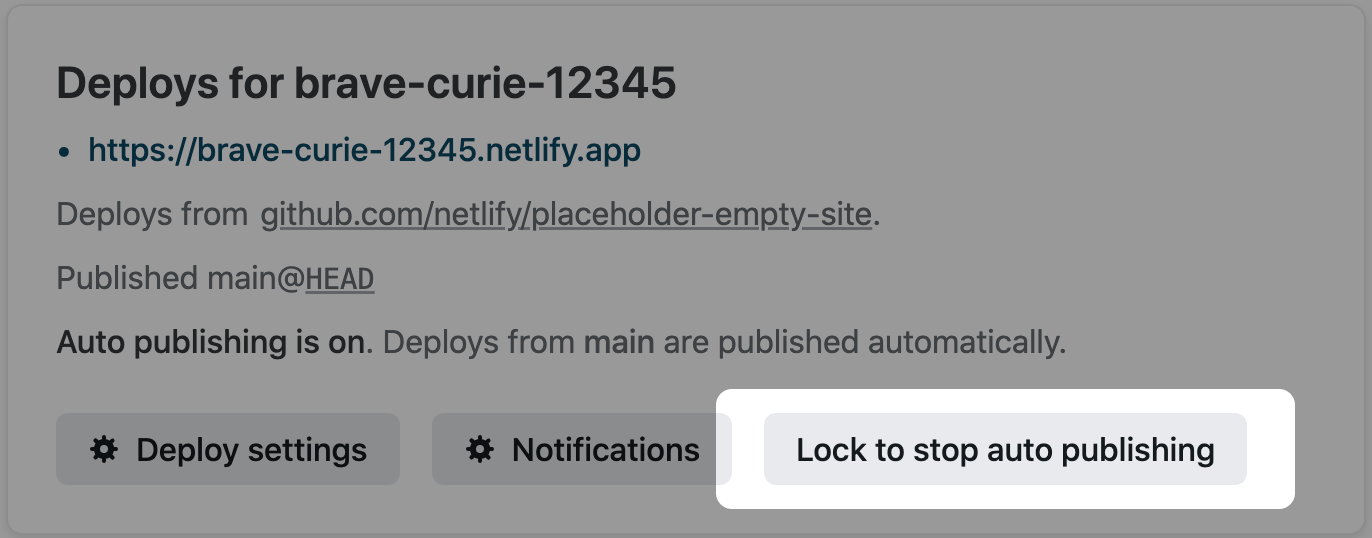
Together, these features ensure your team can stage, review, and ship confidently with predictable URLs, safe rollbacks, and a fully automated path from preview to production.
Environment management
Manage environments and secrets
Different stages of your workflow often need different settings — like pointing to a staging API for previews or using production credentials for live deploys. Netlify makes that simple with scoped environment variables you can define per context.
There are three main deploy contexts:
- Production – builds from the default branch (main)
- Deploy Preview – builds for pull or merge requests
- Branch Deploy – builds for persistent staging or demo branches
You can define these variables directly in your site settings or in netlify.toml. This keeps each environment isolated and predictable; your production app connects to live services, while previews can safely test against staging data.
For sensitive information, use Secrets Controller to store and rotate credentials securely. It centralizes management across all your builds and prevents accidental exposure in preview environments.
If you reuse environment variables across multiple projects, Netlify also supports organization-wide variables that apply automatically everywhere.
For local development, the Netlify CLI replicates your build environment. Running netlify dev spins up a local server with the same redirects, functions, and environment variables used in production so you know it works everywhere, not just on your machine.
Build performance
Optimize build performance
Every second spent waiting for a build adds friction to your team’s workflow. Netlify’s build system is designed to keep your pipeline efficient by default — rebuilding only when needed, caching what it can, and giving you full control over how builds run across your projects.
By default, Netlify uses a push-to-deploy model: every time code changes in your repository, a new build and deploy are triggered automatically. This guarantees your live environments always reflect the latest commit.
But as your projects grow, you can fine-tune build behavior to match your team’s needs:
- Skip unnecessary builds. Prevent builds for specific branches or minor file changes that don’t affect output.
- Target specific packages in monorepos. Configure base directories and dependencies so updates in one workspace don’t trigger a full rebuild.
- Reuse cache intelligently. Netlify automatically stores and reuses dependencies and build artifacts to shorten build times.
Build Plugins and customization
For deeper customization, Build Plugins let you run custom logic at any point in the build lifecycle — before, during, or after a build. Use them to extend functionality, integrate external tools, or automate maintenance tasks.
Some examples:
- Cache or invalidate data between builds.
- Trigger visual diff tests or performance audits post-build.
- Sync with third-party services like Slack, Sentry, or Datadog for notifications and monitoring.
You can add plugins to your project by referencing them in netlify.toml or by installing them from the Extensions directory in your Dashboard. Many common workflows already have community-built plugins ready to use.
Managing build concurrency
Teams working across many branches often run into queuing — especially during periods of heavy activity. Each plan has limits on how many builds can run simultaneously. Netlify automatically skips older queued builds when newer commits are pushed to conserve time and resources, ensuring your most recent work always takes priority.
If you need tighter control, you can configure custom ignore rules or increase concurrency through plan settings, so your pipeline scales with your release cadence.
Agent Experience
Extend your workflow with AI
Modern development teams increasingly rely on AI tools like Claude Code, Cursor, and Windsurf to speed up development and reason about complex codebases. Agents are becoming part of the team, but they need a safe, standardized way to interact with your project.
Model Context Protocol (MCP) and AI integrations makes that possible. By exposing structured project context and API access, MCP allows AI agents to understand and connect to your infrastructure. That means they can run tests, monitor builds, or automate routine tasks all while staying within the same pipeline your team already trusts.
With the Netlify MCP server, agents can:
- Trigger builds and deploy previews using natural language or tool commands
- Inspect deploy logs and branch configurations to debug or verify changes
- Gain structured insight into your project’s dependencies, tooling, and commands
Netlify prioritizes both Developer Experience (DX) and Agent Experience (AX) to give developers and the AI assistants they’re steering the same safe, auditable access to builds, environments, and deploys. As AI development workflows mature, your existing workflow stays consistent and extensible.
Conclusion
Putting it all together
On Netlify, the familiar flow from feature branch to production becomes a shared, automated loop that helps your whole team move faster.
- Every pull request gets a live deploy preview for real-time feedback
- Branch deploys provide stable staging sites for QA and client reviews
- Context-aware configuration keeps each environment secure
And for teams exploring AI-assisted tools, Netlify’s support for open standards like MCP extends these same reliable workflows to agents as well.
A modern pipeline isn’t only about shipping code. It’s about creating a process that everyone on your team can trust. With Netlify, every push is a chance to validate, collaborate, and improve together so developers, designers, marketers, and even agents, can collaborate without friction.