As AI search tools like ChatGPT, Claude, and Perplexity become a bigger part of how users discover information online, teams are starting to rethink how they measure visibility.
The problem is that most analytics platforms were built to filter bot traffic out, not help teams understand how AI crawlers interact with their content.
Answer Engine Optimization (AEO) focuses on how content is discovered, interpreted, and surfaced by AI systems like ChatGPT, Claude, and Perplexity—not just traditional search engines. But while the strategy has moved into the AI era, measurement is still stuck in the SEO era.
You can’t optimize what you can’t see. And today, most teams have no visibility into how AI crawlers interact with their content.
The reality is you can’t tell which pages ChatGPT or Perplexity are crawling, how often they’re returning, or what they’re ignoring entirely. In some cases, AI crawlers may not be able to access your content at all, especially on heavily client-rendered sites where key content isn’t immediately visible to bots. That often requires solutions like prerendering to address, and leaves marketing and platform teams making high-stakes decisions based on incomplete data—analytics platforms that filter out the exact signals they now need most.
A visibility gap in modern stacks
The instinct for many teams is to force AI tracking into existing tools. But those tools weren’t built for a world where “users” include autonomous AI agents.
Most teams fall into one of these approaches (and each one breaks):
- Google Analytics (GA4) filters out bot traffic by design. That includes AI crawlers, meaning ChatGPT and Claude visits are removed before you ever see them.
- Search Console only shows Googlebot activity. There’s zero visibility into the broader AI ecosystem.
- Third-party bot detection tools are built for blocking bad actors, not for understanding the behavior of beneficial AI crawlers.
The result? Teams are flying blind, guessing whether AI agents are even seeing their content, and—if they are—which pages actually matter.
How can you track AI crawler activity on your site?
To track AI crawler activity, you need access to the server-level logs that capture bot traffic before it’s filtered out by analytics tools. Netlify Log Drains provide this by streaming server-level traffic data to tools like Datadog, S3, or AEO platforms like Profound where AI crawler user agents can be identified and analyzed.
This is something traditional analytics tools like Google Analytics and Search Console cannot provide.
Visibility without friction: How Netlify surfaces AI crawler activity
Strip away the complexity, and the question is simple: How do you actually see how AI crawlers interact with your site without rebuilding your entire stack?
This is where Netlify Log Drains come in. Netlify identifies known AI bots like GPTBot, ClaudeBot, and PerplexityBot at the server level, before that data has been filtered out by analytics tools.
Instead of losing that visibility, Log Drains stream raw traffic data to your destination of choice, turning server logs into something your team can actually use. Log Drains aren’t just for debugging anymore. Now they’re your window into how AI sees your content.
From raw logs to real insight: connecting Log Drains to Profound
Raw logs alone aren’t enough. You need a way to interpret them.
By connecting Netlify Log Drains to an AEO platform like Profound, OtterlyAI, or Brandlight, you move from guesswork to real visibility. You can start to answer questions like:
- Which pages are AI systems crawling more frequently?
- Which high-value pages are being skipped entirely?
- How often are AI crawlers returning, and how does that change over time?
For example, if GPTBot consistently crawls your blog content but never touches your product or pricing pages, that’s a signal your content structure isn’t aligned with how AEO systems prioritize and surface answers.
Without Log Drains, you’re guessing whether AI systems ever see your content.
With Log Drains and Profound, you can track crawl behavior, identify gaps, and measure the impact of changes over time.
Getting started with Netlify Log Drains
For Netlify users on the Enterprise plan, setting up Log Drains is straightforward and doesn’t require rebuilding your architecture:
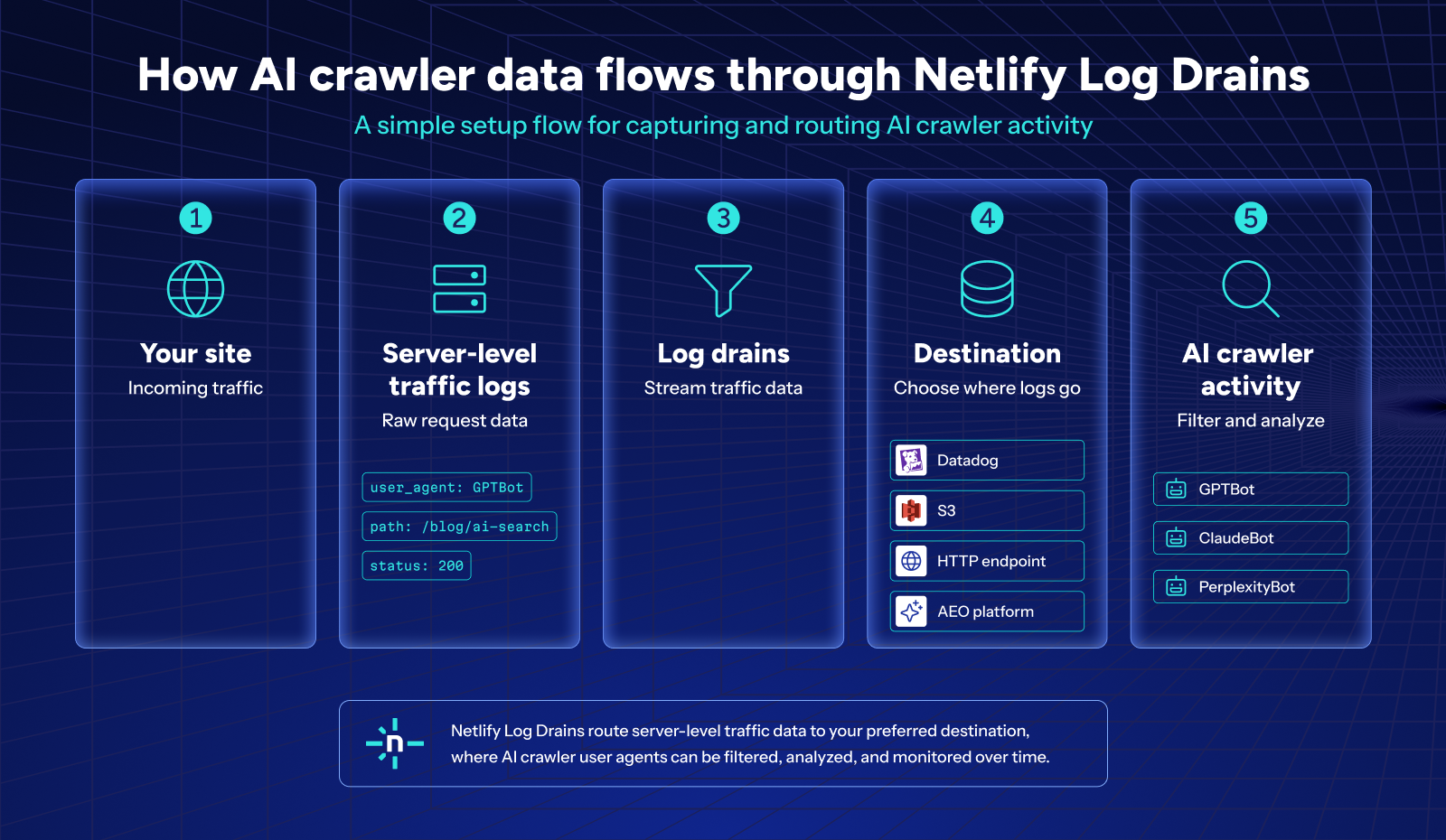
- Enable Log Drains in your Netlify dashboard (Site settings → Log Drains)
- Select a destination (Datadog, S3, HTTP endpoint, or an AEO tool like Profound)
- Filter for AI crawler user agents (e.g., GPTBot, ClaudeBot, PerplexityBot)
- Validate incoming data by confirming crawl activity appears in your destination
For full implementation details, refer to Netlify’s Log Drains documentation.
Need help upgrading your Netlify account to access Log Drains? Let us know.
Next, optimize for AI Search using Log Drain data
Once you have visibility, you can put it to use. You can:
- Identify gaps: Find high-value pages AI crawlers aren’t reaching
- Improve structure: Use clear headings, concise answers, and structured content
- Adjust crawl signals: Update robots.txt, internal links, and sitemaps
- Track and act on changes: Monitor how crawl patterns shift and use Netlify Agent Runners to test and improve visibility without requiring full engineering changes
This creates a feedback loop that will help maximize your AEO strategy:
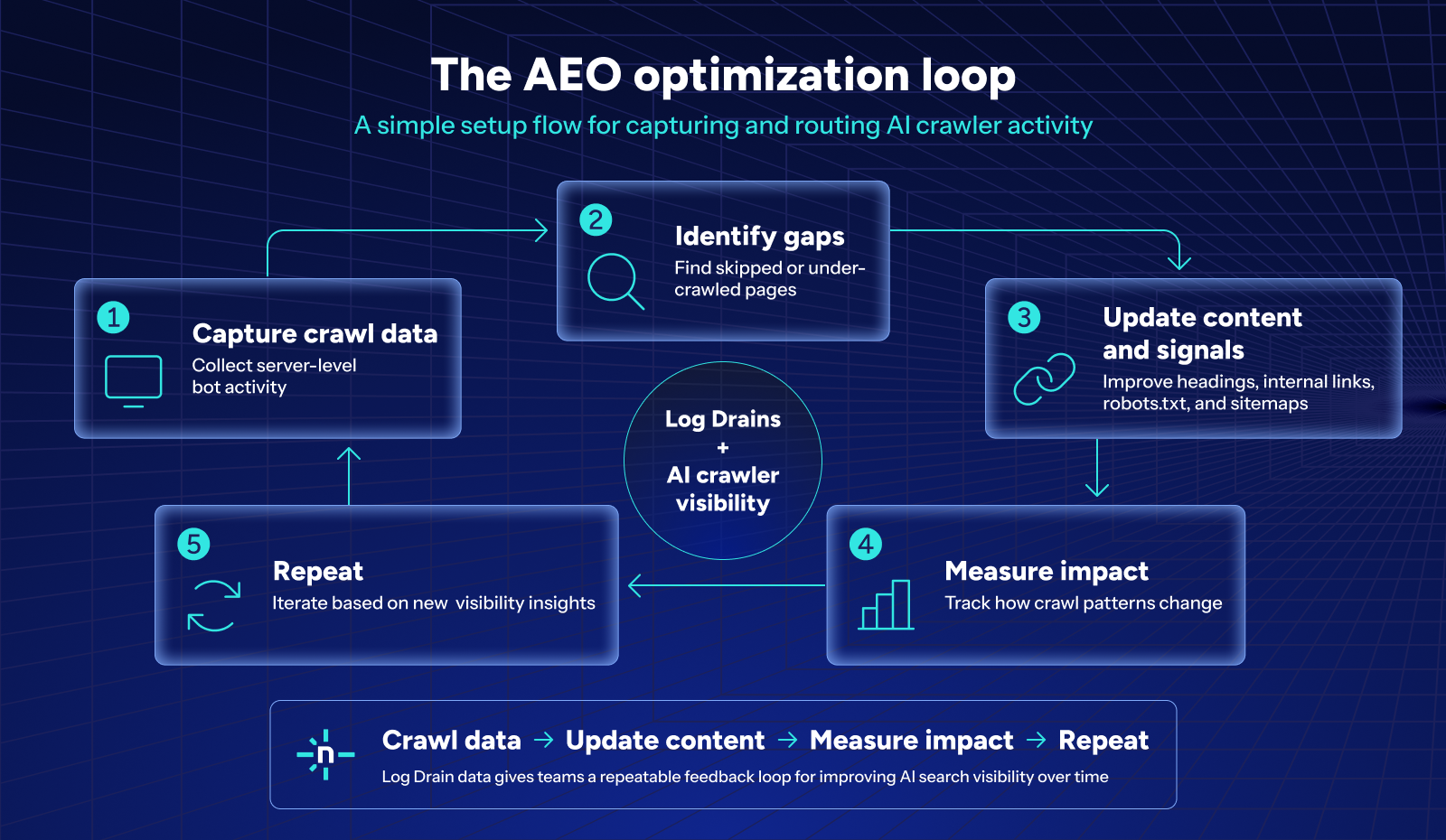
Crawl data → Update content → Measure impact → Repeat.
Better visibility, better decisions
AEO is quickly becoming a priority for marketing leaders, but without visibility it’s impossible to measure progress.
Netlify Log Drains close that gap.
They give you direct insight into how AI systems interact with your site, so you can stop guessing and start making informed, data-driven decisions.
Ready to see what AI crawlers are actually doing on your site? Enable Netlify Log Drains, connect your data pipeline, and start optimizing with real visibility.